01
The blank-box problem
users need prompts and categories to understand what the AI can do.

An end-to-end AI app for ChatMind, designed, built and tested by AleyaAI: one conversational assistant for flights, hotels, tours, car rentals, food and health services, with a fast and secure sign-in experience.
ChatMind’s vision was simple: instead of opening five different apps to book a flight, reserve a hotel, rent a car or order food, users should just ask. Kevin Richardson partnered with AleyaAI to create an AI assistant app that combines a conversational, voice-first search with clear service categories, wrapped in a modern brand and a secure, friction-free account experience. AleyaAI owned the product end to end — the brand-led UI, the AI search experience, the full authentication journey (sign up, sign in, social login, password recovery and OTP verification) and a reusable design system, then development, QA and launch on iOS and Android.
AI assistants are powerful, but many feel like a blank chat box that leaves users unsure what to ask. ChatMind had to solve four problems:
01
users need prompts and categories to understand what the AI can do.
travel, food and health services are spread across separate apps.
people want to speak or type, depending on the moment.
an assistant that books and pays for things needs a reliable, secure login and account recovery flow.
Competitive analysis of AI assistants, super apps and travel booking apps.
User interviews on how people book travel and services today.
Task analysis of the most common requests: flights, hotels, tours, car rentals and food orders.
“Users trust AI more when it shows clear options alongside the chat, rather than replacing them entirely.”
What success looked like, and how we measured it.
Make AI capabilities obvious at first glance
First-session task starts
Support voice and text requests
Share of voice vs typed searches
Sign up in under a minute
Time to create an account
Reduce login and recovery drop-off
Password reset completion rate
We designed ChatMind around a conversational AI home and chat that make the assistant’s abilities obvious, backed by a secure authentication journey that gets users in quickly and safely.
01 / 06
The ChatMind identity centres on a fluid, iridescent teal orb — a living “mind” that signals intelligence without feeling robotic. The splash screen sets this tone on a deep teal-to-silver gradient that carries through the whole app.

02 / 06
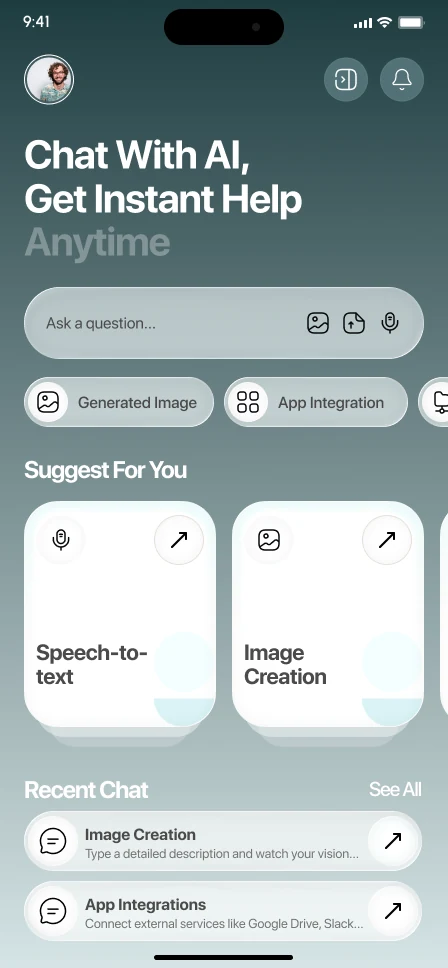
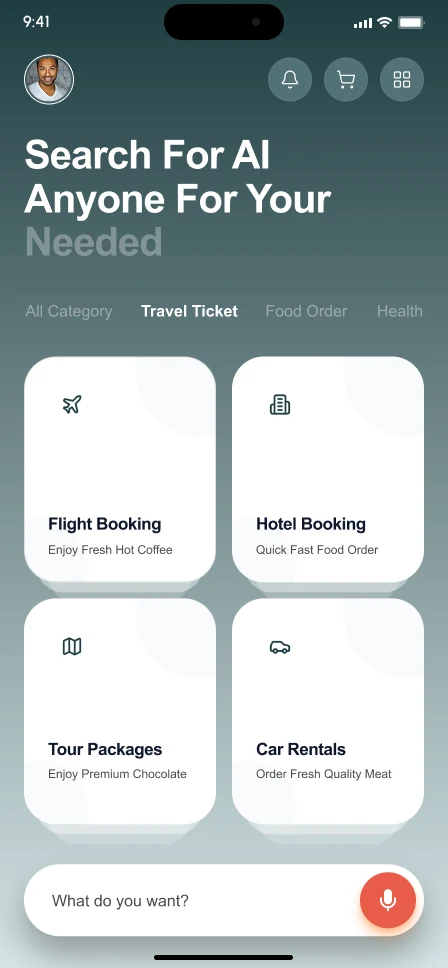
Two home screens make sure the AI never feels like an empty box. The main screen leads with “Chat With AI, Get Instant Help Anytime” and an “Ask a question…” bar that takes text, images, files or voice, with shortcuts such as Generated Image and App Integration, a Suggest For You row (Speech-to-text, Image Creation) and recent chats. The services home adds visible categories — All, Travel Ticket, Food Order and Health — with large cards for Flight Booking, Hotel Booking, Tour Packages and Car Rentals, and a persistent “What do you want?” bar with a bright voice button.
03 / 06
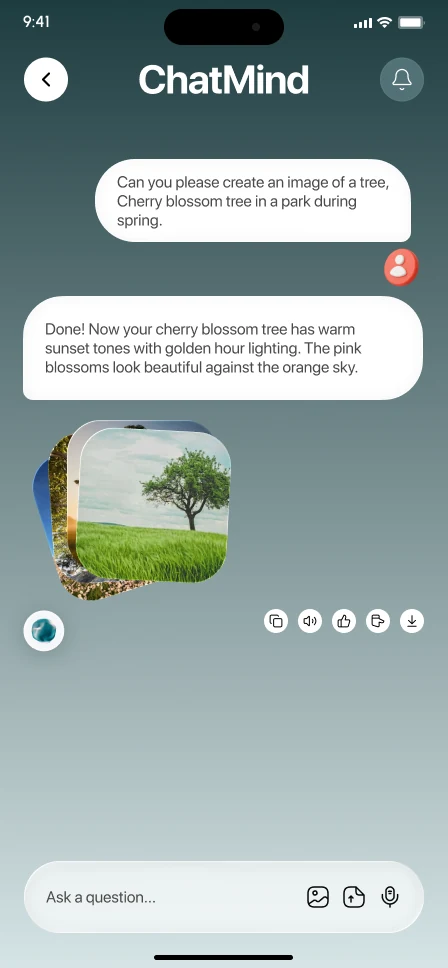
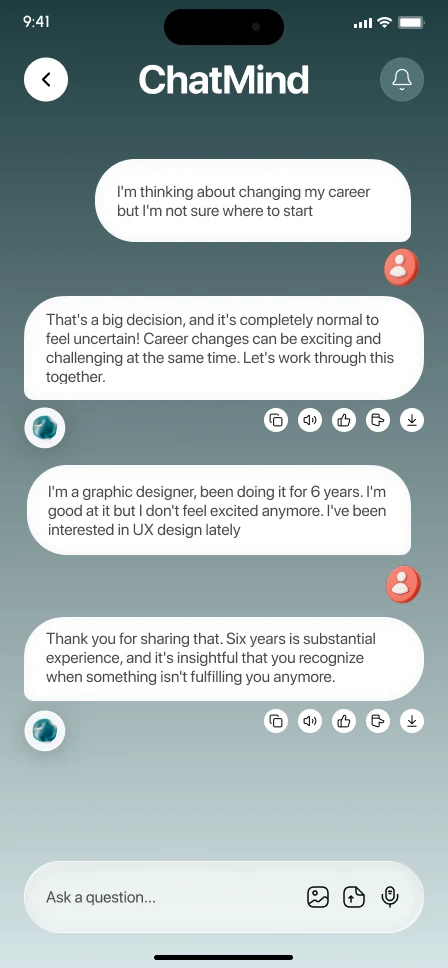
This is where ChatMind earns its name. A new chat opens with “Hi, I’m ChatMind” and suggested capabilities, so users always know what to ask. From there, one thread handles everything — advice, images and links — with the chat and clear options side by side, as the research recommended.
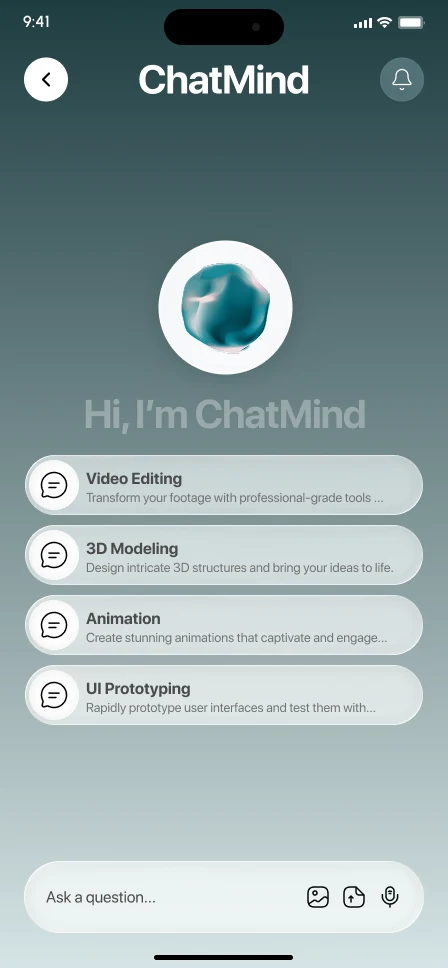
New chat
Conversation
Image generation
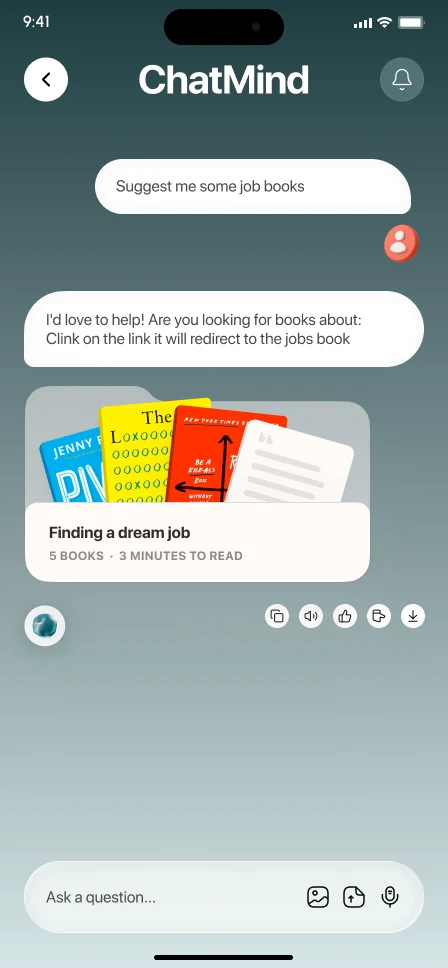
Rich links
04 / 06
Every conversation is saved under Recent Chat, with a title and a one-line summary so users can find it again at a glance. One tap reopens a chat, the “+” button starts a new one, and old chats can be cleared from the same screen.
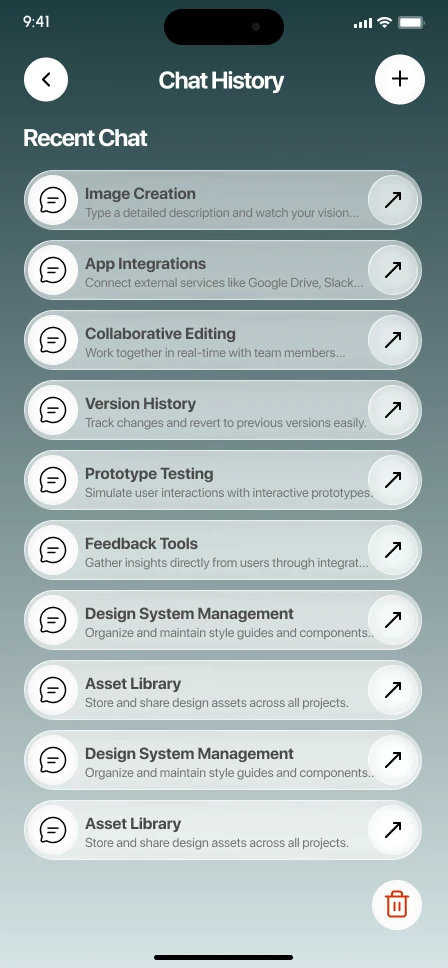
05 / 06
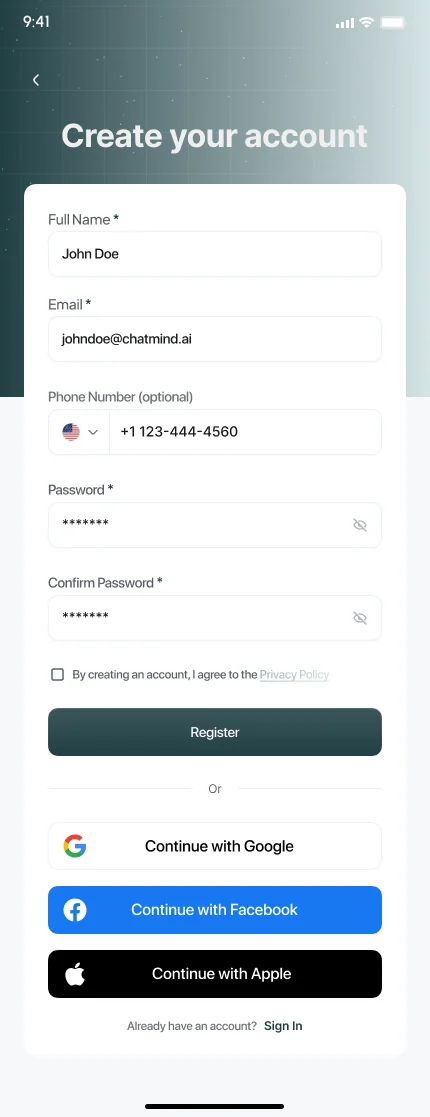
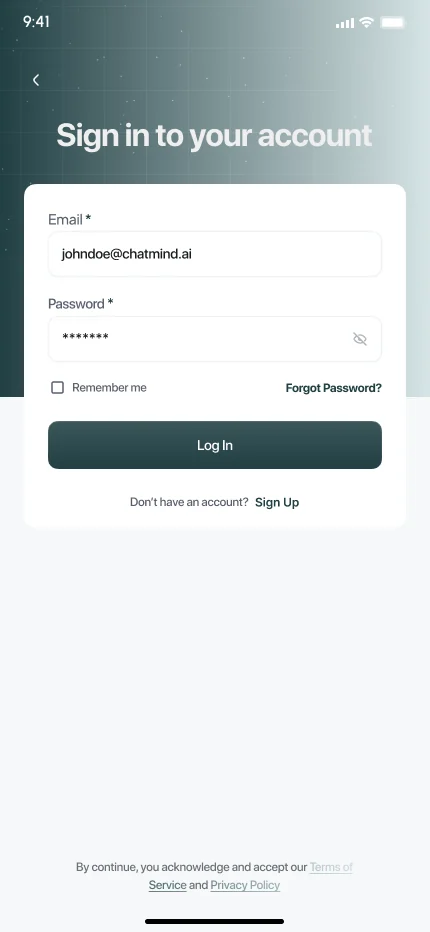
Getting in takes seconds. The welcome screen puts one-tap Google, Facebook and Apple sign-in first, with email as the alternative. Sign up asks only for essentials — name, email, an optional phone number, password and Privacy Policy consent — and sign in keeps “Remember me” and “Forgot Password?” in easy reach.
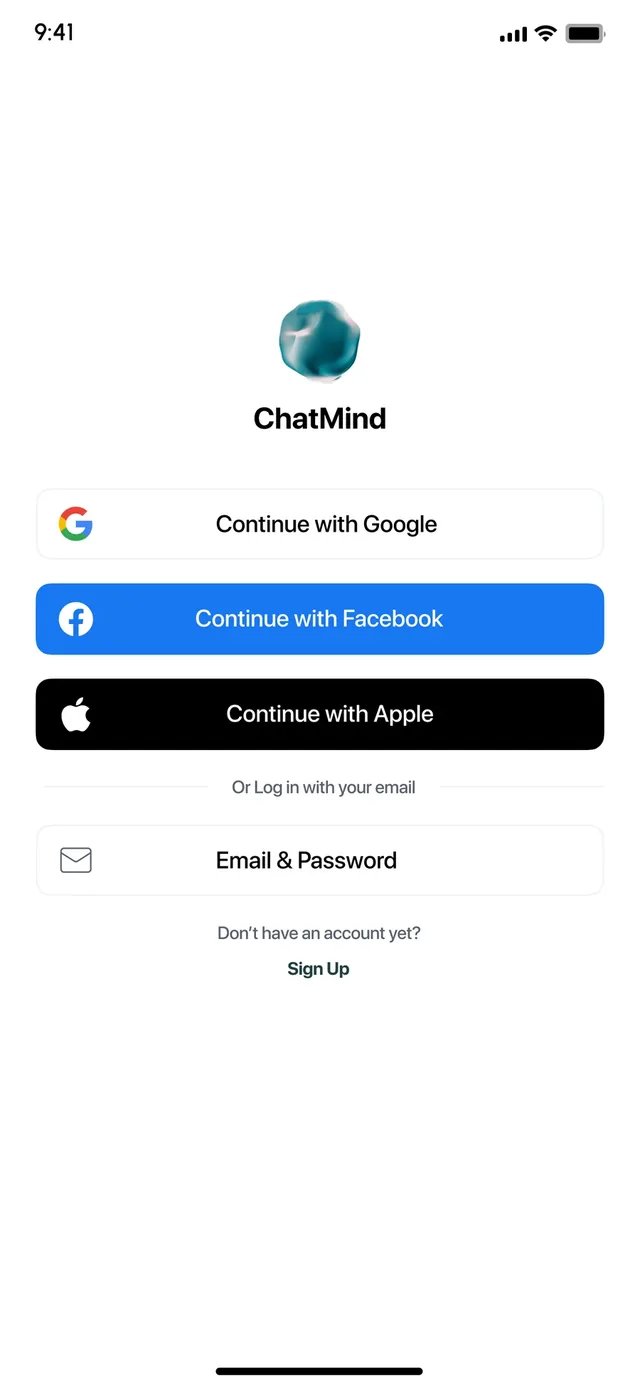
Welcome
Sign up
Sign in
06 / 06
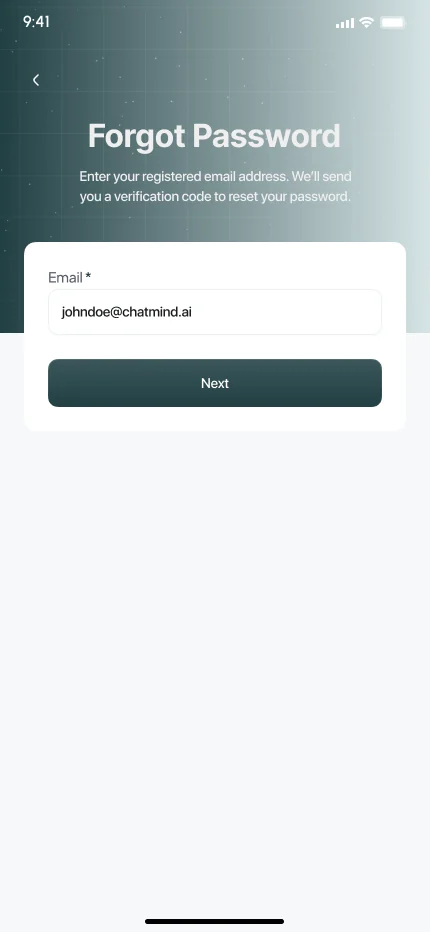
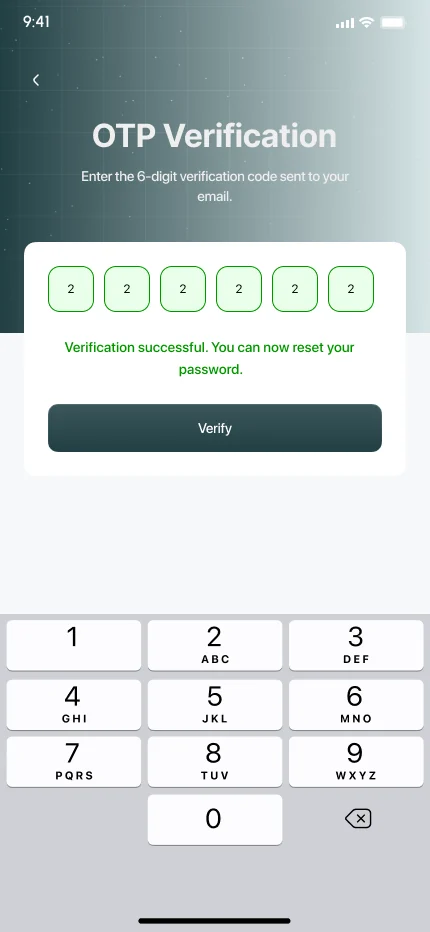
We designed account recovery as a calm, four-step flow:
Step 1 · Forgot password
Step 2 · OTP success
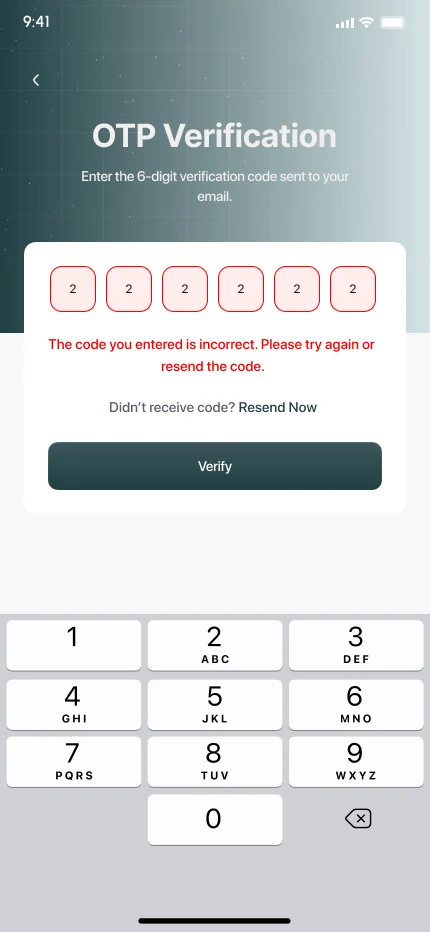
Step 3 · OTP error
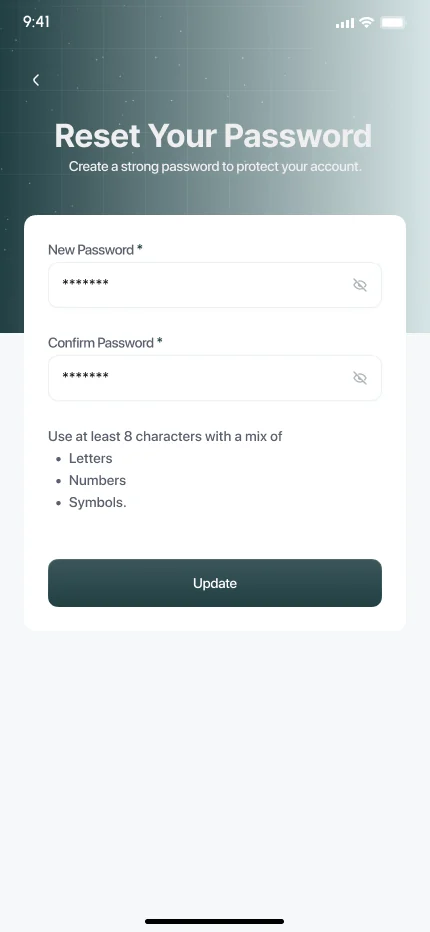
Step 4 · Reset password

Step 5 · Updated
Colour
#1B3336
Deep teal · brand
#2F4B4F
Slate teal · buttons
#ACB7B9
Silver · gradient
#E85C4A
Coral · voice
Type
Hi, I’m ChatMind
Ask a question by text, image or voice — I’ll take it from there.
Components
ChatMind was a full product build, not a design hand-off. The same team carried it from research to a tested app in the stores.
6 stages · scroll to follow the journey
competitive analysis, user interviews and task analysis of the most common requests.
brand, AI home, chat, image generation, chat history, voice search and the authentication journey, prototyped and tested.
a documented Figma component library shared by design and engineering.
iOS and Android apps, the backend and APIs behind them, the AI assistant, voice input and secure authentication.
functional, device, security and usability testing on every release before it reached users.
app store release, monitoring and ongoing improvements.
Pairing an AI search bar with clear service categories solves the blank-box problem.
A prominent voice button makes the assistant feel natural and hands-free.
Clear success and error states in OTP and password flows reduce support requests and drop-off.
Social login first, email second, gets most users in with one tap.
Where we work
Can't find what you need? Talk to our team.
An AI assistant app lets users complete tasks — like booking travel, ordering food or finding services — by asking in natural language, by voice or text.
A full AI app UI/UX design with authentication, home and core flows typically takes 4–8 weeks.
Social login options, minimal fields, clear password rules, large OTP boxes, and obvious success and error messages with a resend option.
Yes. We design the experience and build the AI — chat, voice agents and integrations with booking and payment systems.
We design and build AI apps that users understand from the first tap — from conversational UX to secure sign-in.